
Wolf-App — Network Configuration
Static IP, time servers, 4G backup, internet sharing, and the status check.
Everything on this page lives in one place in Wolf-App: Network → Configuration. From here you can choose between DHCP, which is enabled by default, and a fixed IP address. You can also set the time servers, use the optional 4G modem as the primary or backup internet connection, and share the controller's internet connection with equipment connected to its Ethernet port.
Prefer to watch? The walkthrough covers the same five steps in order, with the values typed on screen.
Before you start
- You can already reach the web UI. If you cannot, find the device first — see Getting started §3.
- If you plan to use a fixed IP address, obtain the network details for the site: an unused IP address outside the DHCP range, the subnet mask, the router or gateway address, and one or two DNS server addresses. If you are unsure, ask the person responsible for the network.
- You can restart the controller. Network changes only take effect after a restart (System → Restart Controller).
⚠ Changing the LAN IP address changes how you access the controller. After the restart, the web UI will no longer be available at the old address. Open http://<new-address>:5080 instead. Write down the new address before saving the changes.
Set a static IP address
By default the controller takes its address from DHCP. For a device you want to reach at the same address every time, switch to a static IP.
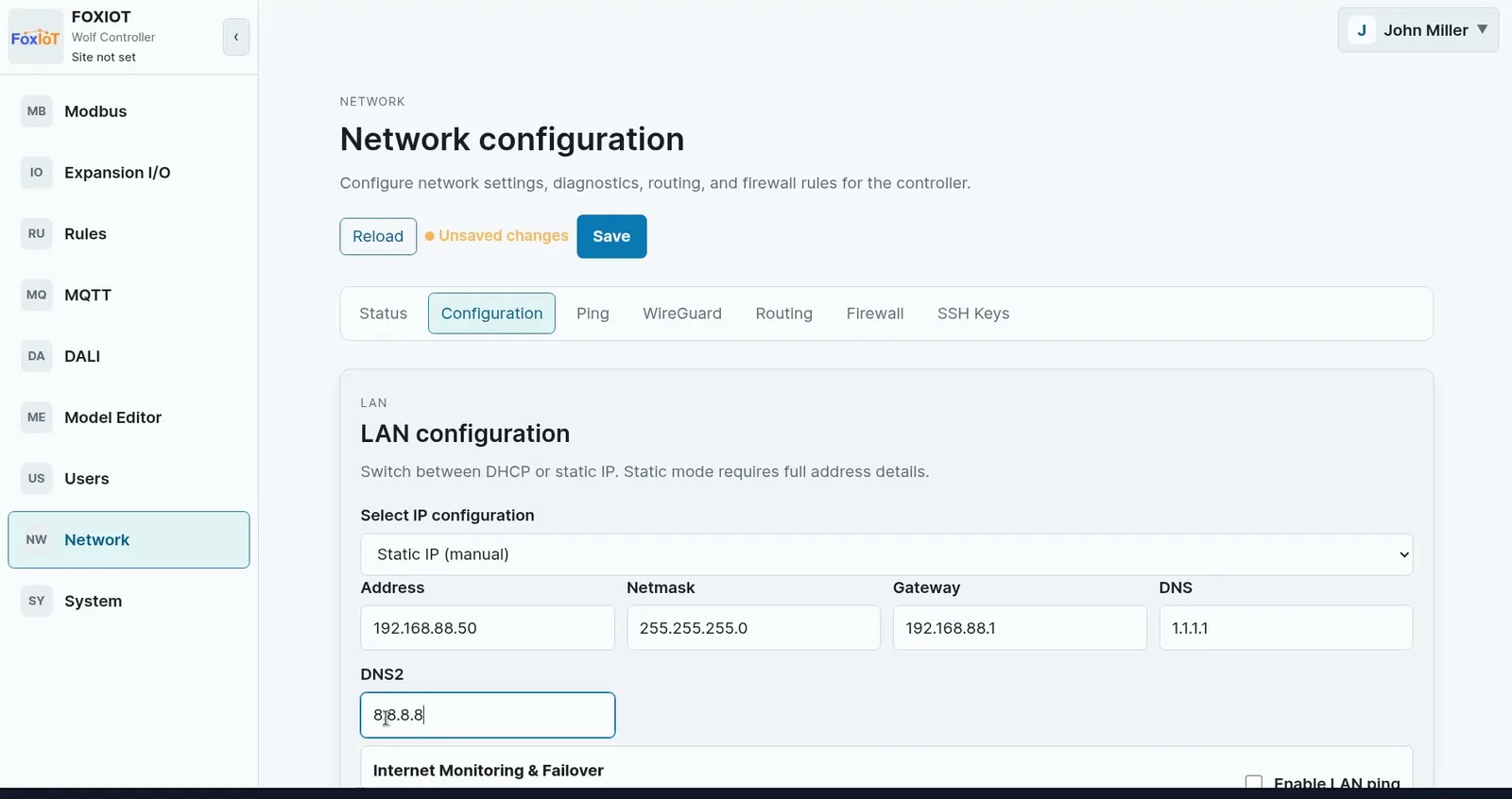
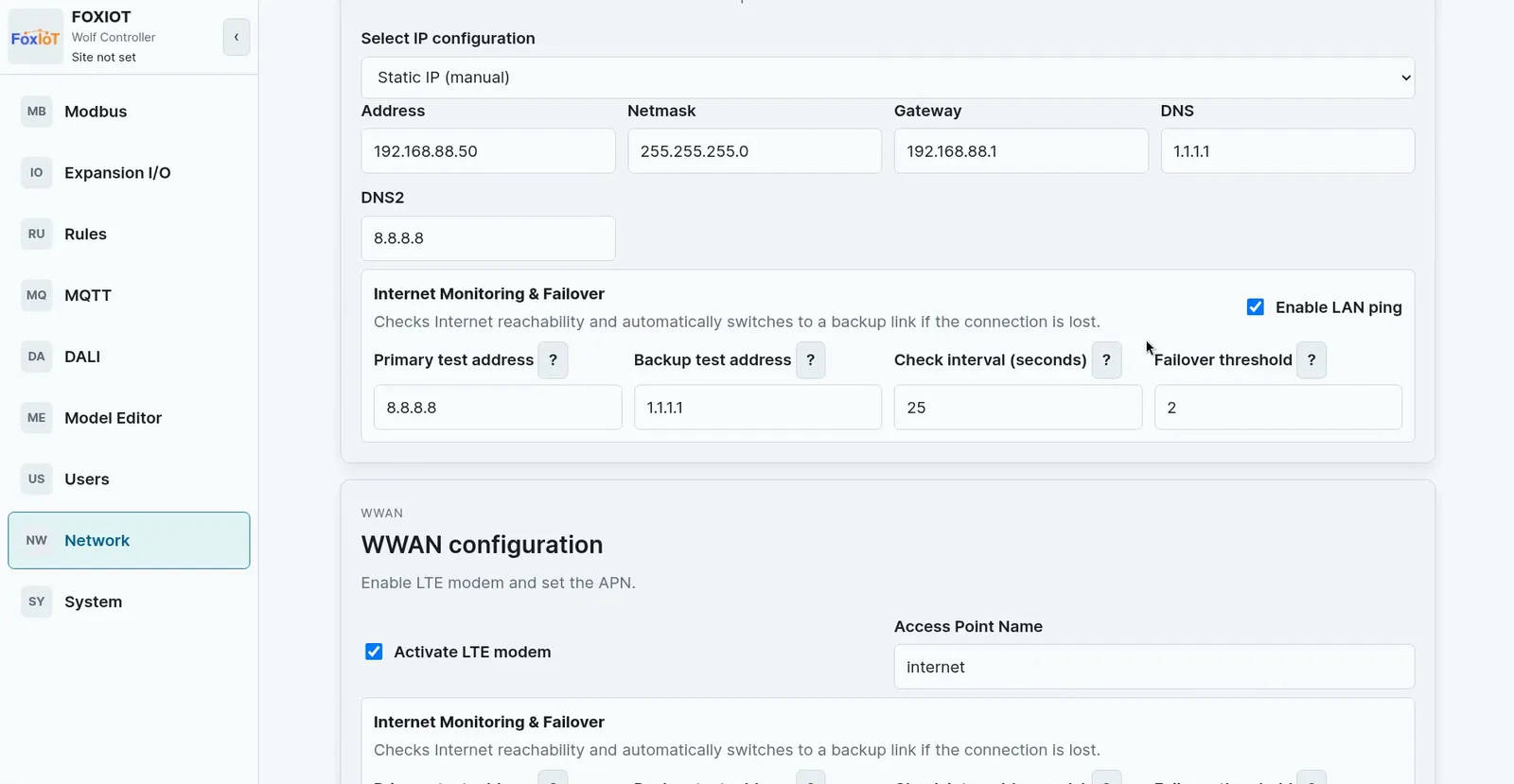
In LAN configuration, open Select IP configuration and choose Static IP (manual), then fill in:
| Field | What it is | Example |
|---|---|---|
| Address | The address reserved for this controller | 192.168.88.50 |
| Netmask | Must match the rest of the network | 255.255.255.0 |
| Gateway | Normally your router's address | 192.168.88.1 |
| DNS | Primary name server | 1.1.1.1 |
| DNS2 | Optional second name server, used as backup | 8.8.8.8 |
DNS turns service names into addresses, so the controller can reach internet services reliably. Review the address, netmask and gateway carefully — a wrong value here is what usually makes a controller disappear from the network — then click Save.
The change needs a restart. Go to System and use Restart Controller.
Set the time servers
Time servers keep the controller's clock correct. That matters for audit-log timestamps, the runtime log, and any time-based automation rule.
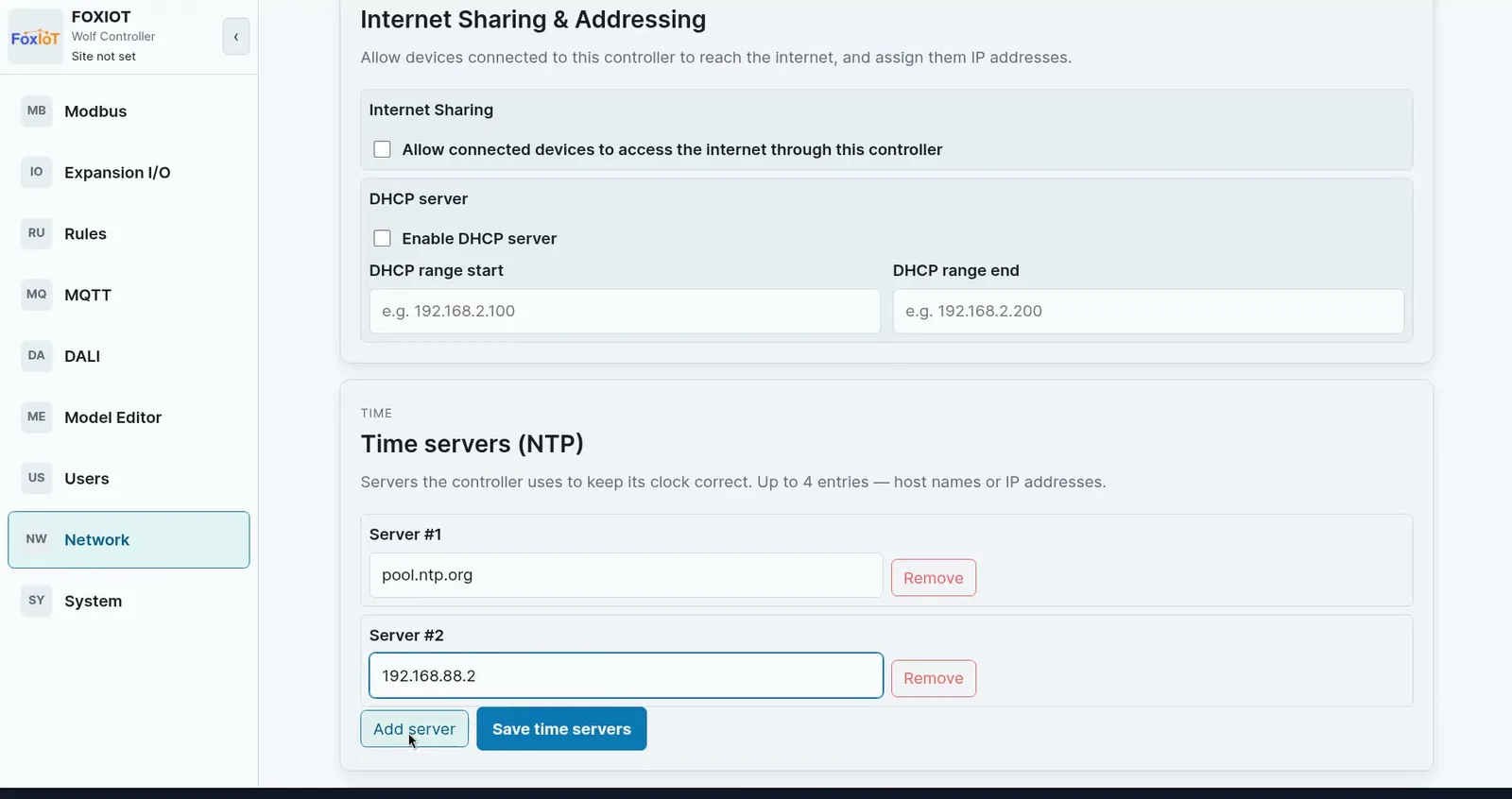
The default pool.ntp.org entry works whenever the controller has internet access. On a closed network:
- Add your local time server — in the example,
192.168.88.2. A local server keeps time available even with no internet. - Click Save time servers.
Up to four entries are allowed, host names or IP addresses. The order is the order the controller tries them.
Use 4G as a backup connection
The 4G LTE modem is optional — a Wolf Controller can be ordered with or without it. If yours has the modem, it can take over automatically when the wired connection fails.
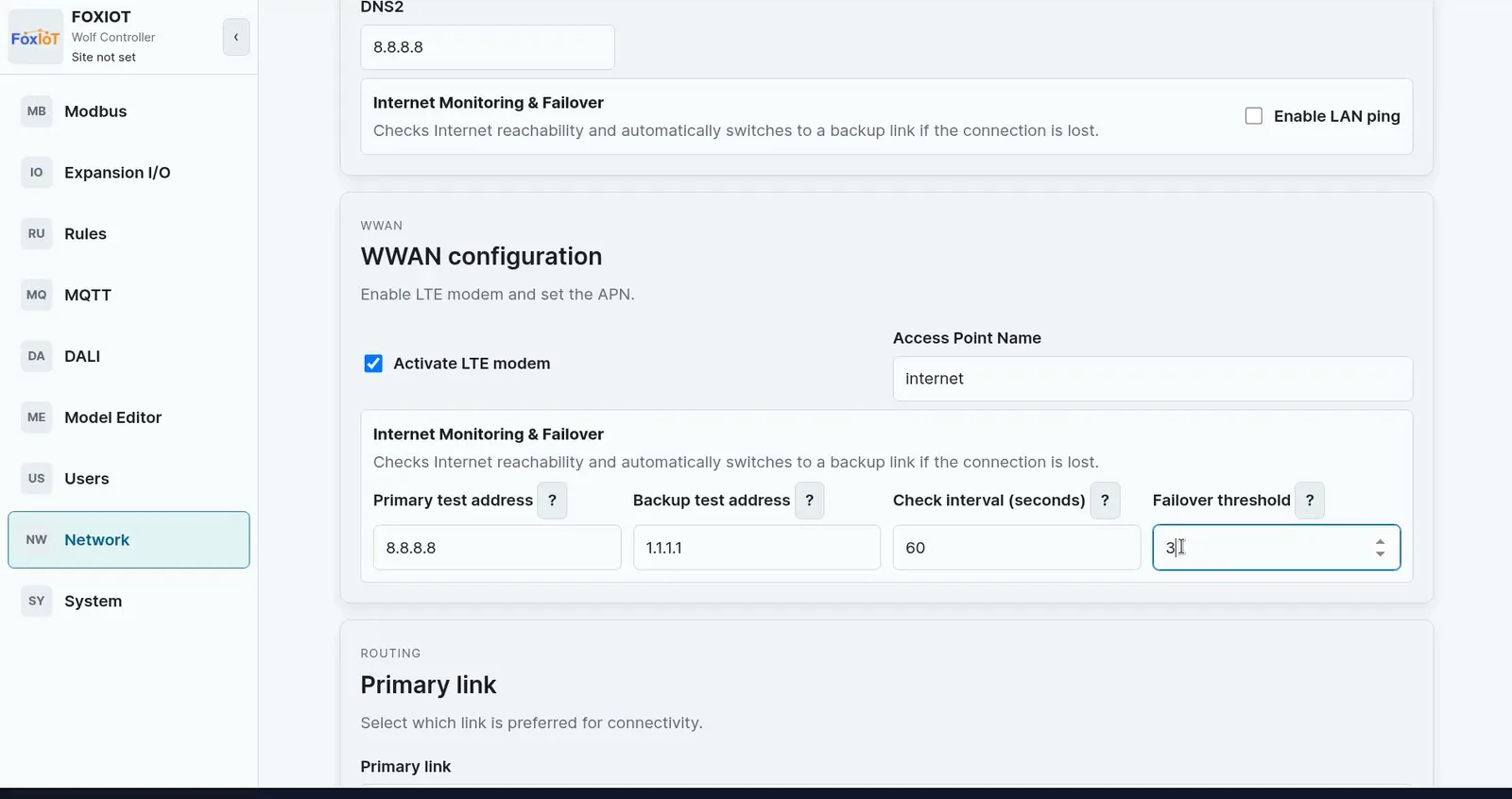
In WWAN configuration:
- Turn on Activate LTE modem.
- Enter the Access Point Name (APN) from your SIM provider — in the example,
internet. - Under Internet Monitoring & Failover, enter two internet IP addresses the controller can ping to prove the 4G link reaches the internet —
8.8.8.8and1.1.1.1. - Set the check interval and the failover threshold. In the example the test runs every 60 seconds, and after 3 failed tests the controller restarts the 4G modem.
Then tell the controller that the wired link is still the preferred route, and how to notice when it fails:
- Leave Primary link set to LAN, so wired stays the main route.
- Turn on Enable LAN ping and enter two internet IP addresses that reliably answer a ping — for example
8.8.8.8and1.1.1.1. The test proves the wired link actually reaches the internet, not just that the cable is plugged in. - Set its interval and threshold — in the example, a test every 25 seconds, and after 2 failed tests Wolf switches internet traffic from LAN to 4G.
- Click Save, then restart the controller.
Use 4G as the primary connection
Some sites do not have a wired internet connection and use the optional 4G modem as their primary connection. In the controller settings, the mobile connection is labelled LTE.
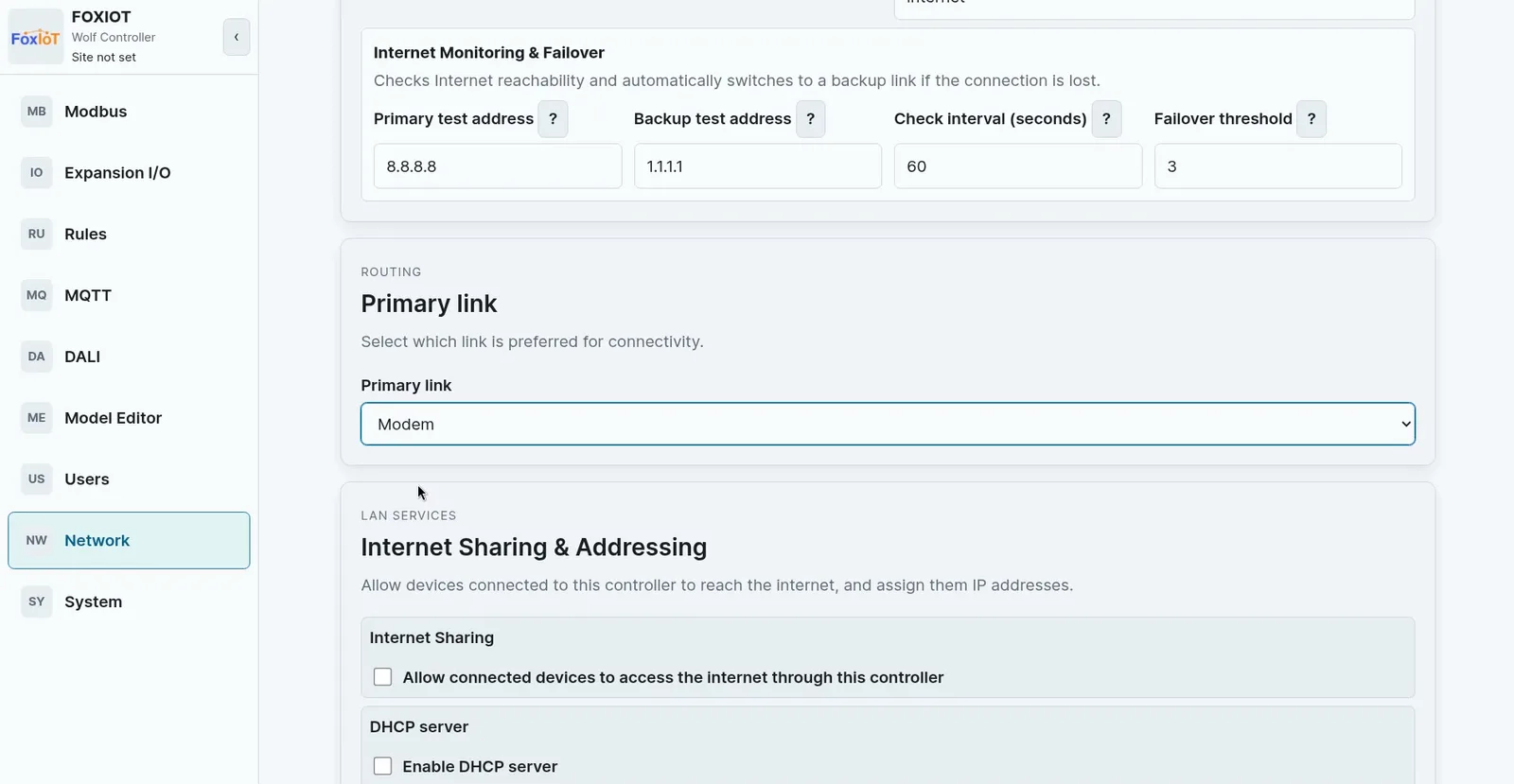
- Under Primary link, select Modem. The controller will then use the 4G modem as its main internet connection.
- If there is no wired connection to monitor, turn Enable LAN ping off.
- Leave the modem's own monitoring on. The controller keeps checking the internet through the modem, and if several checks fail it restarts the modem and reconnects — that is what lets a remote 4G site recover on its own.
- Click Save.
Share the 4G connection with field devices
The controller can pass its 4G internet on to the devices wired to its LAN port — inverters, battery systems, or any other field device that needs internet access.
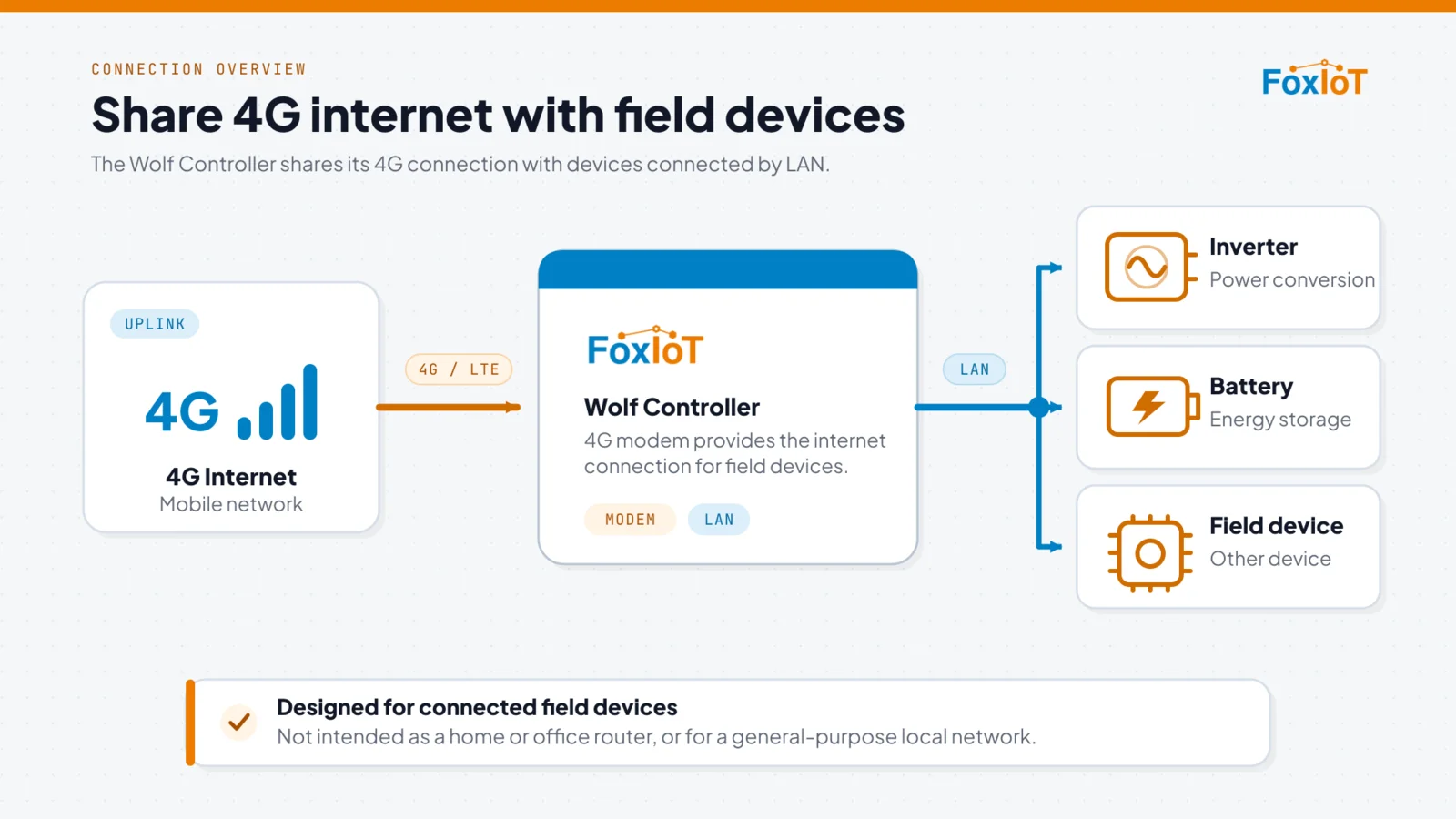
⚠ Intended use — connected field devices only. Internet sharing exists so that the field devices wired to the controller can reach the internet through it. It is not designed to replace a home or office router, or to manage a general-purpose local network.
This is the documented intended purpose of the product: "LTE modem provides internet access for the gateway and connected field devices" — see Intended Purpose in the user information PDF. The security risk assessment behind the device's CE marking and its conformity under the Cyber Resilience Act (EU Regulation 2024/2847) assumes that use. Running general-purpose network traffic through the controller falls outside it.
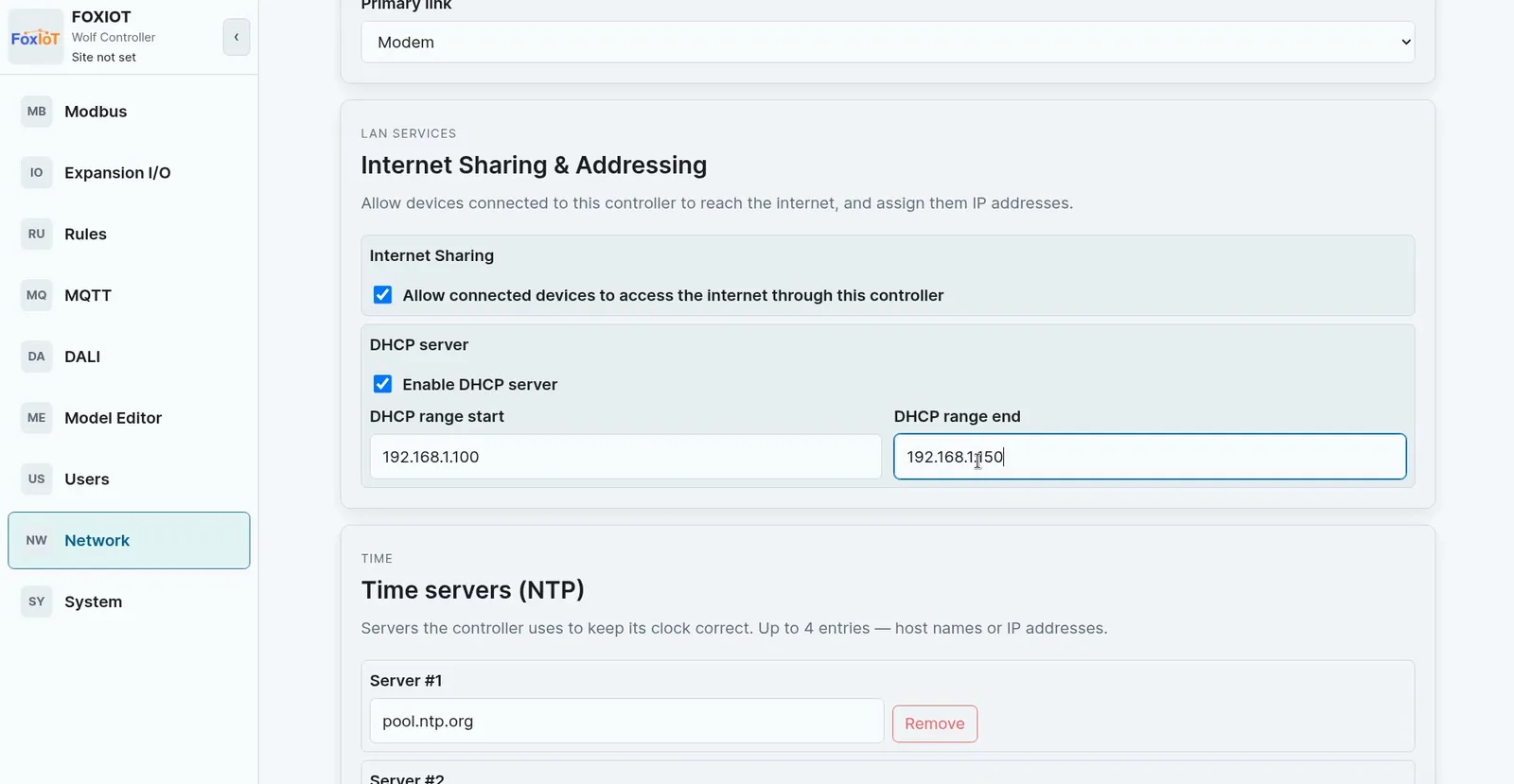
- Set the controller's LAN Address to
192.168.1.1, and set Gateway to the same address. - Turn on Internet Sharing — allow connected devices to access the internet through this controller.
- Turn on Enable DHCP server.
- Set DHCP range start to
192.168.1.100and DHCP range end to192.168.1.150. - Click Save, then restart the controller.
Each connected device now gets an address from that range, and the controller sends its internet traffic out through the 4G modem.
Check the network status
Open the Status tab to confirm the result.
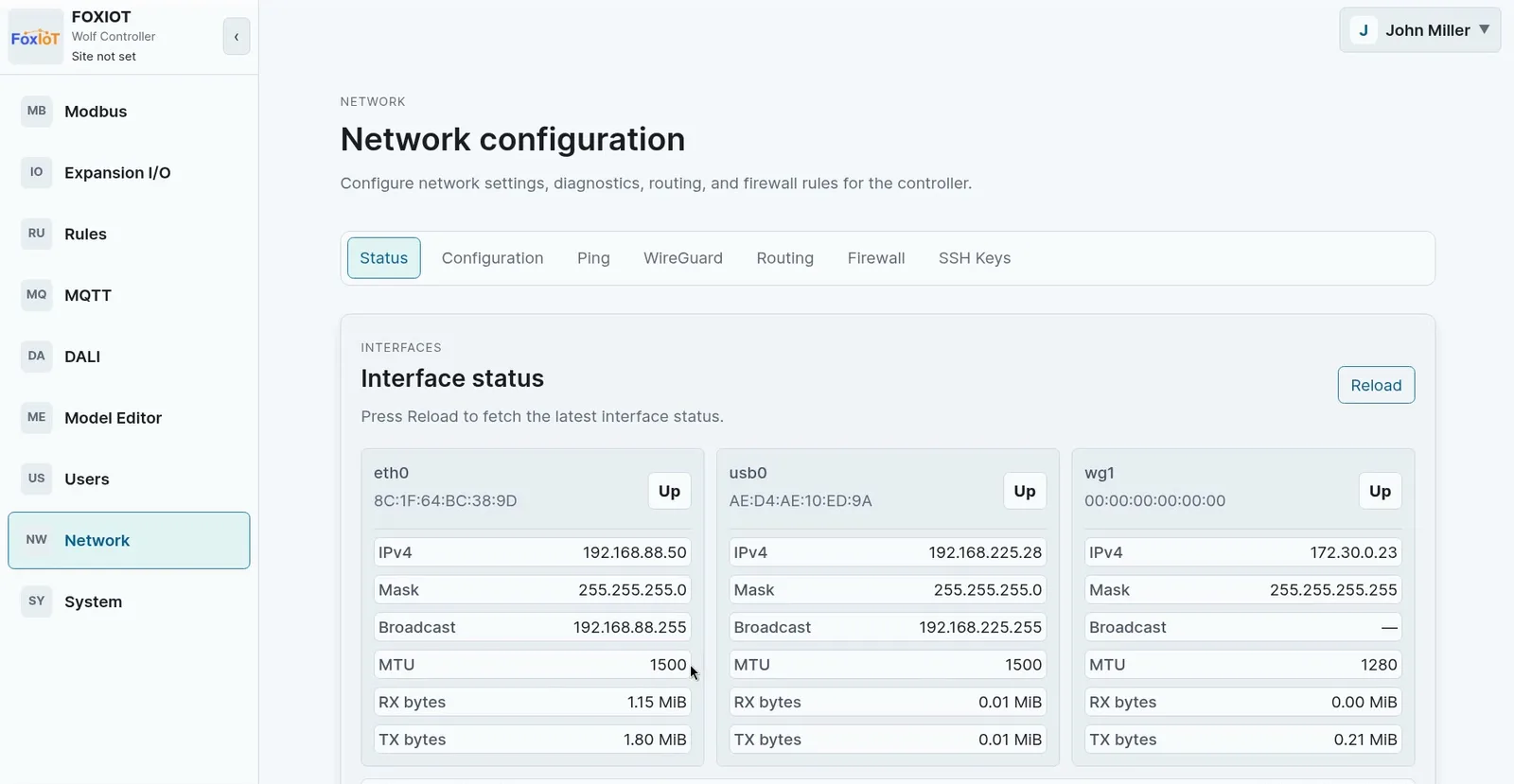
Each network interface shows whether it is up, its address, and its traffic:
| Interface | What it is |
|---|---|
eth0 |
The wired ethernet port — your LAN |
usb0 |
The LTE modem |
wg1 |
The WireGuard VPN tunnel |
Below the interfaces, the Active default route line shows which link the controller is currently sending internet traffic through — eth0 on a wired site, the modem on a 4G site, and the one that changes when failover happens.
If the controller has the LTE modem, a Modem status card appears below that.
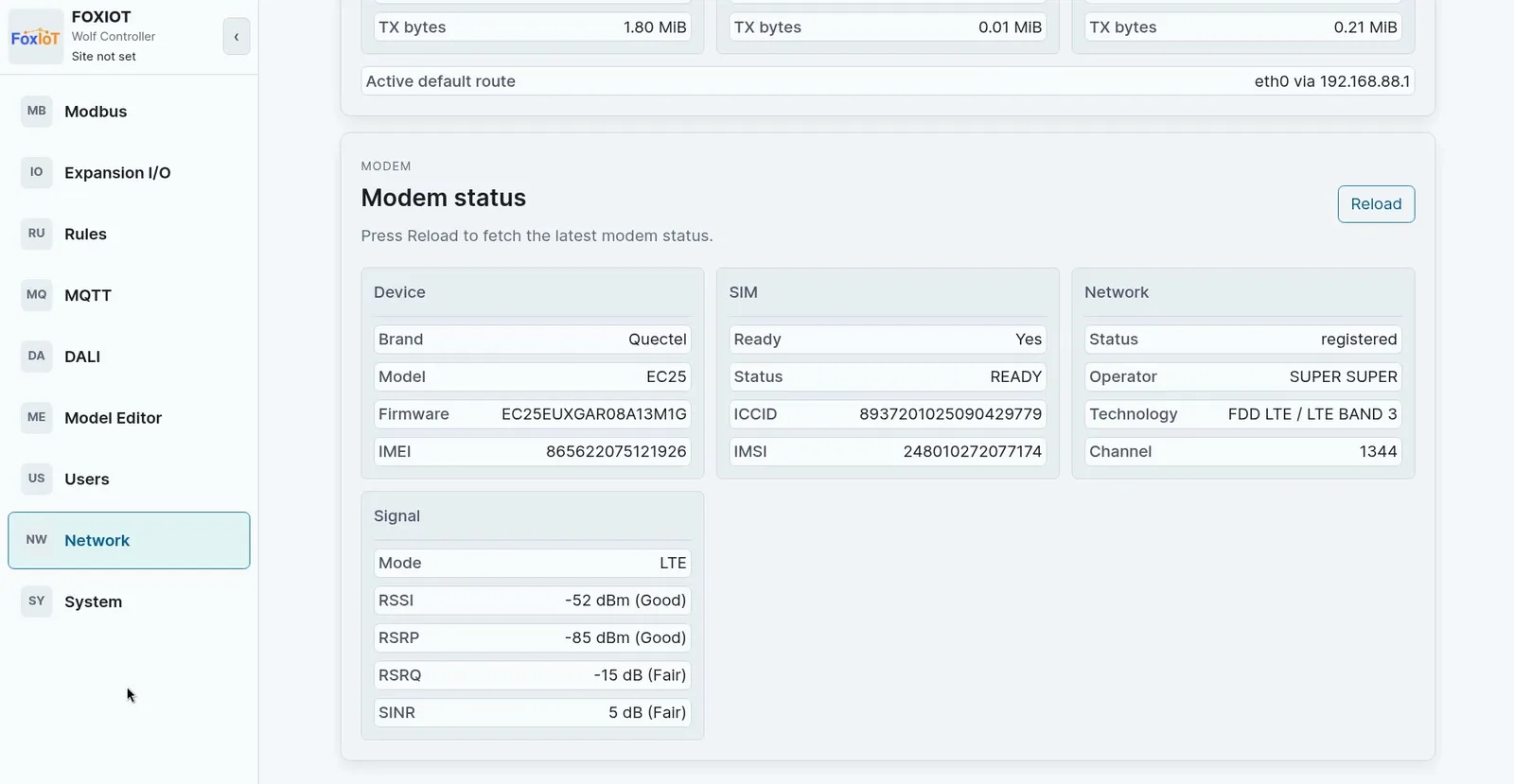
| Card | What to look at |
|---|---|
| Device | Modem brand, model and firmware — useful when reporting a problem to support |
| SIM | Ready: Yes means the SIM is detected and unlocked. A SIM that still needs a PIN never gets here |
| Network | Status: registered means the modem is on the mobile network, with the operator, radio technology and band |
| Signal | RSSI, RSRP, RSRQ and SINR, each with a plain quality rating — Good, Fair or Poor |
You do not need to interpret the raw dBm values: if the ratings say Good or Fair, the link is usable. Consistent Poor ratings mean the antenna needs a better position.
If the interfaces are up and the signal is good, the network is ready.
Troubleshooting
The controller disappeared after I saved a static IP.
The address, netmask or gateway is wrong for this network, or another device already uses that address. Boot the controller into recovery mode to reach it at the fixed address 192.168.2.127, then correct the settings.
The settings look right but nothing changed. Network changes apply only after a restart. Go to System → Restart Controller.
4G never takes over when I unplug the ethernet cable. Check that Enable LAN ping is on, that its test addresses answer a ping from your own machine, and that Primary link is set to LAN. Failover waits for the threshold — with a 25-second interval and a threshold of 2, expect up to a minute before traffic moves.
The modem stays down. Confirm the APN matches what the SIM provider gave you, and check the Modem status card on the Status tab: it shows whether the SIM is detected and whether the modem is registered on the mobile network. A SIM that needs a PIN, or a data plan that is not active, will never register.
Connected devices get no address. Check that Enable DHCP server is on and that the controller has been restarted since you saved. If the field device has its own static IP configured, it never asks for one — give it an address in the same subnet as the controller by hand, or switch it to DHCP.
Next: secure the controller with two-factor authentication, a WireGuard VPN and firewall rules — see Harden your gateway.