
Wolf-App — The Data Model
One shared tree, a path for every value, and the write–event–react pattern behind every rule.
Inside the Wolf Controller, all process data lives in one shared tree — the devices, the values they read, and the rules that use them. Every value in that tree has its own address, and we call that address a path. When you know the path, you can read the value or write a new one — and the real hardware follows.
This one idea is why rules on this controller are so short. Learn the paths for your devices and you can wire anything to anything.
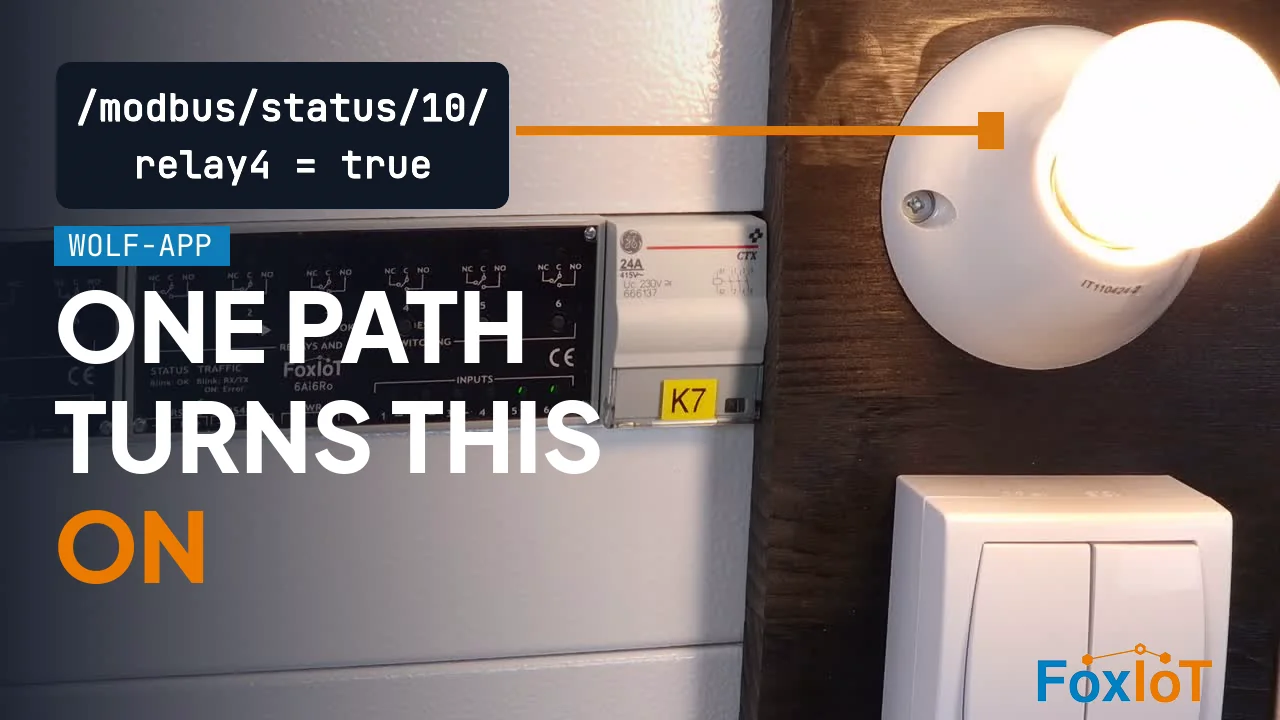
Prefer to watch? The video draws the model first, then proves it on a real cabinet: a value written in the Model Editor turns on a lamp, and a wall switch on one controller drives a relay on a different one.
One shared tree
There is no separate database for each device. There is one tree, and every part of the system looks at the same tree: the drivers, your rules, MQTT, and the web interface.
/
├── modbus/
│   ├── definitions      the Modbus devices you set up
│   ├── rtu/             serial bus settings
│   ├── tcp/             Modbus TCP settings
│   └── status/          live values read from those devices
├── io/                  the Wolf-8ADio1Ro card
│   ├── conf/            input and output settings
│   └── status/          live inputs, outputs and relay
├── 3oiro/               the Wolf-3Oi3Ro card
│   ├── conf/            input and relay settings
│   └── status/          live inputs and relays
├── dali/                the Wolf-2DALI card
│   ├── conf/            gear and input settings, per channel
│   └── status/          live levels, events and bus state
├── mbus/                M-Bus meters, per channel
│   ├── conf/            channel, port and meter settings
│   └── status/          live meter readings and bus counters
├── mqtt/
│   ├── config/          broker settings
│   └── status/          connection state and last error
├── net/
│   └── status/          live network interfaces, route and modem
├── rules/
│   ├── conf/            your rules
│   └── status/          when each rule last fired
├── persist/             values your rules keep across a restart
│   └── status/          how much of the space is used
└── system/
    └── status/          controller load and memory
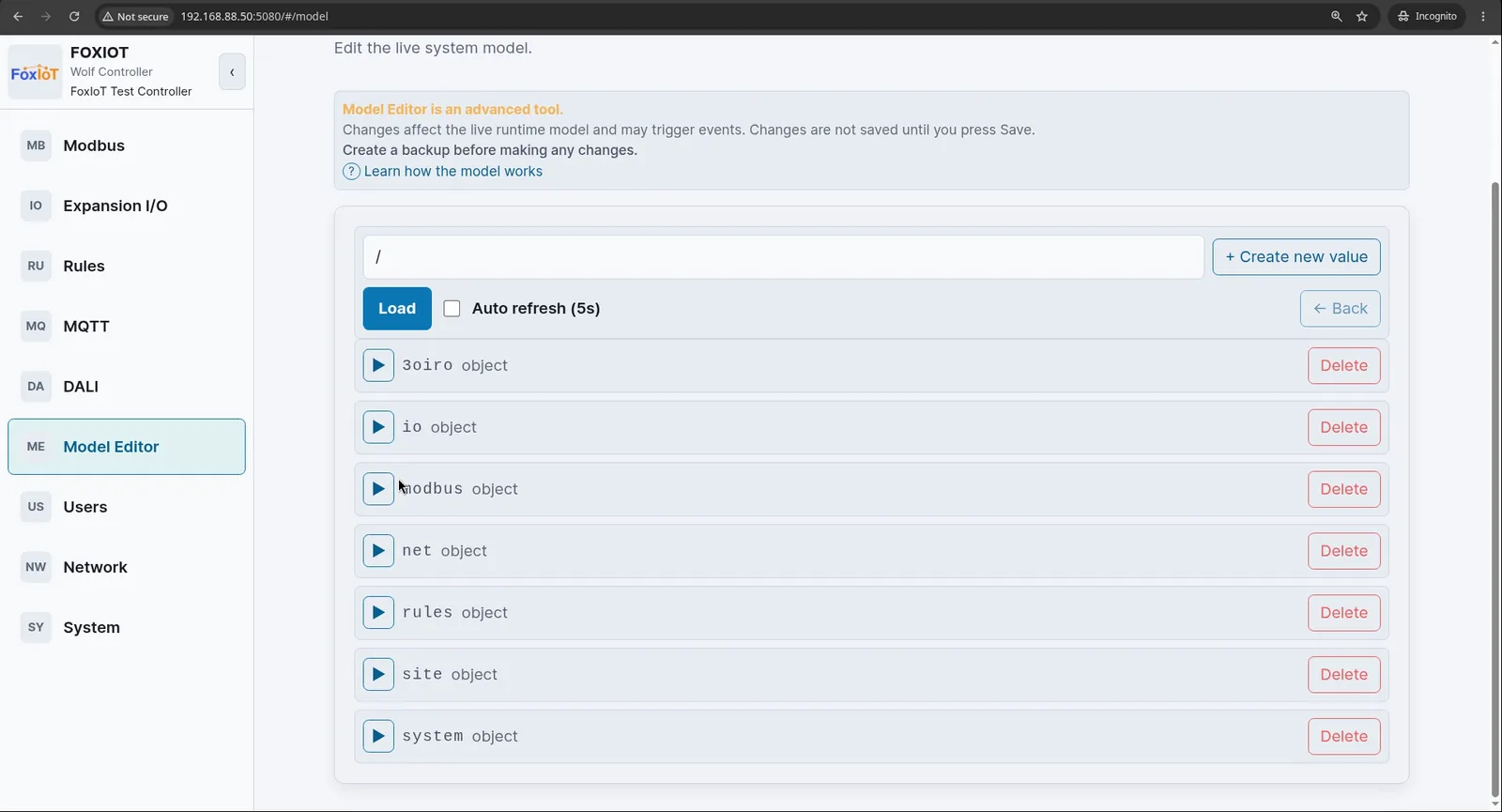
You can see the same tree in Wolf-App under Model → Model Editor. The top level lists the branches this controller has, so your list will differ from the one above.
The expansion card decides which I/O branch you get: io for the Wolf-8ADio1Ro, 3oiro for the Wolf-3Oi3Ro, and dali for the Wolf-2DALI. The Wolf-2RS485 card adds no branch of its own — the devices you reach through it appear under modbus, and meters behind an M-Bus converter under mbus.
Nothing on the controller talks device to device. Every interaction goes through the tree.
The model holds your process data — not the controller's system settings. The tree is where your automation lives: the devices, their live values, and the rules that use them. The controller's own system settings are kept outside it. Each one has its own service and its own file, and each is saved by its own page in Wolf-App — not by the model's Save button. These are:
- user accounts and their two-factor settings
- the network settings, the extra routes and the time servers
- the WireGuard VPN
- the firewall rules
- the SSH keys
Network is the one that surprises people, because /net is still in the tree. What the model keeps there is only live status — the interfaces, the active route and the modem. The settings behind them are not in the tree. To change the network, use Network → Configuration. See Network configuration.
Every value has a path
A path is the address of one value, written like a folder path. The path is also the name of that value — it is how you find it and how you point at it in a rule.
A value can be a number, a text, true/false, or a group of values below it.
These are the real paths from the test cabinet in the video:
| Path | Type | What it is |
|---|---|---|
/modbus/status/11/input5Digital |
boolean | Button 1 on the wall switch |
/modbus/status/11/input6Digital |
boolean | Button 2 on the wall switch |
/modbus/status/10/relay3 |
boolean | The floor heater |
/modbus/status/10/relay4 |
boolean | The lamp |
/modbus/status/13/activePower |
number | Power, in watts |
/modbus/status/11/serialNumber |
string | The serial number of the device |
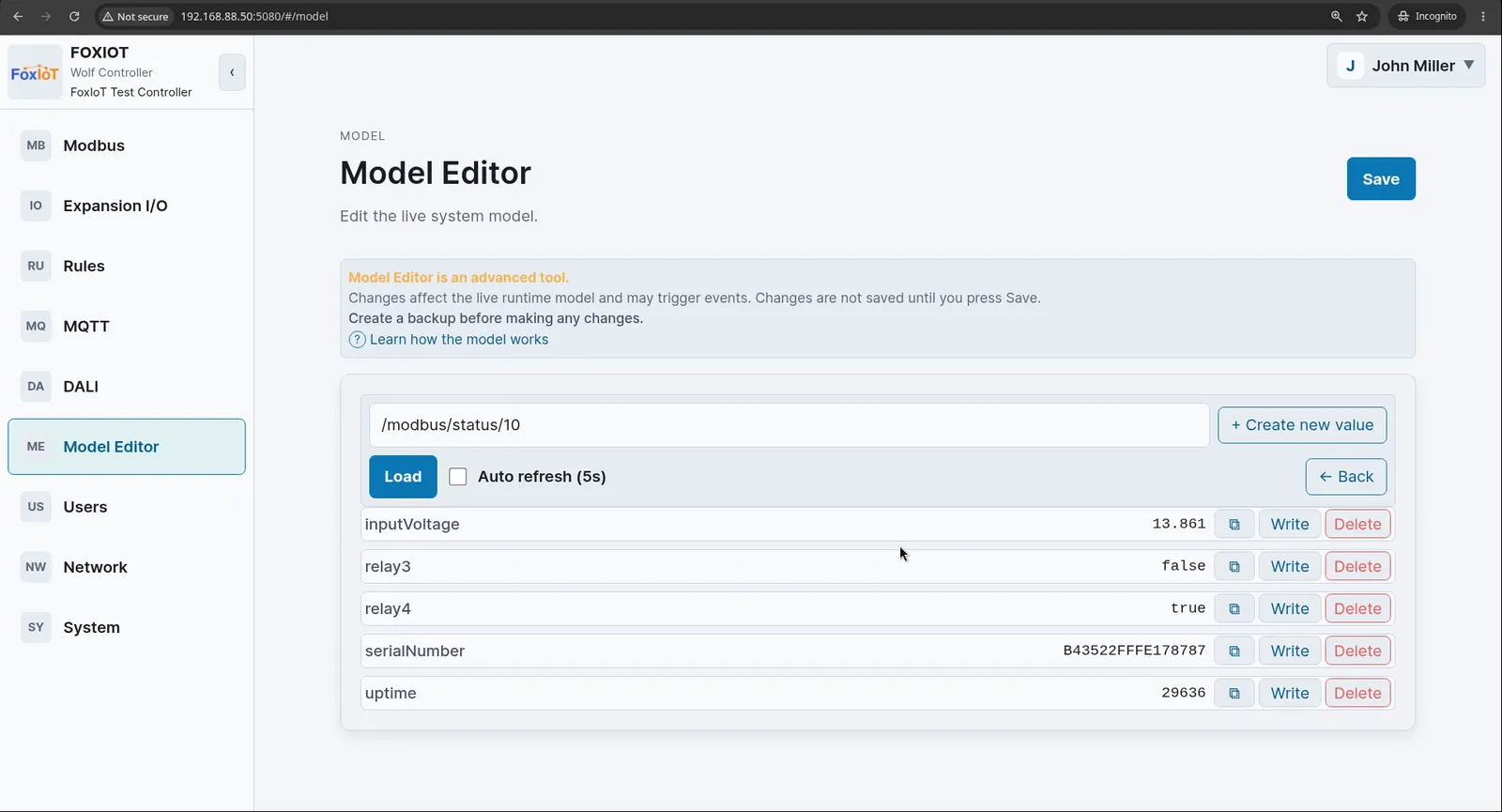
Open a device path in the Model Editor and you see its values, each one with its own Write, Delete and copy-path buttons.
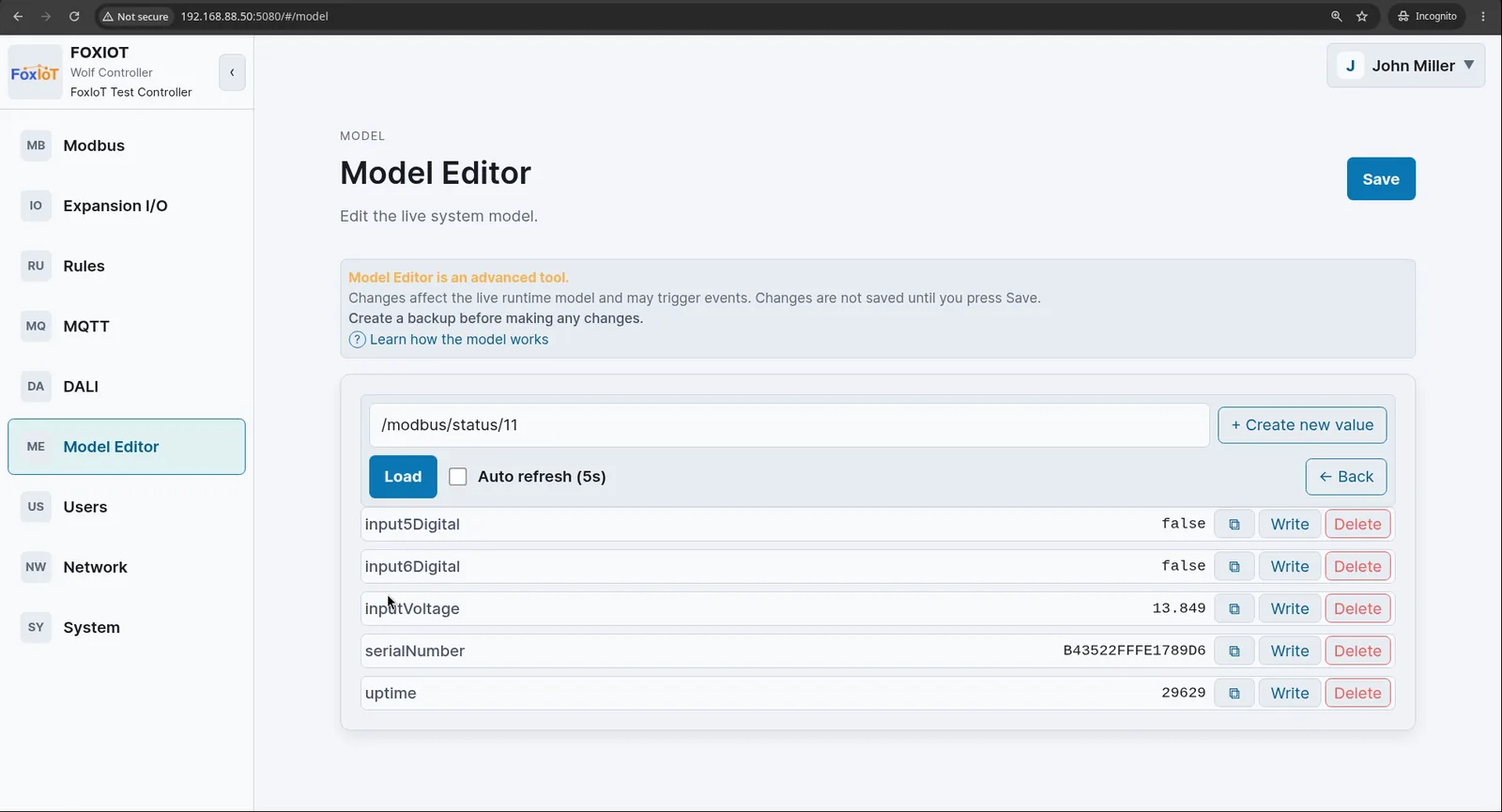
The number in a Modbus path is the device ID you assign. When you create a Modbus device in the configuration, you give it an ID. That ID is what appears in the path — /modbus/status/11/.... It is not the Modbus slave address on the bus. The two are separate, and they do not have to match.
Settings and live values
Settings and live values sit in the same tree, but they behave differently. One branch name decides which is which: status.
| Branch | What it holds | Saved? |
|---|---|---|
status |
Live values right now — readings, states, inputs, outputs | No |
/persist |
State a rule has to keep across a restart | Yes, by itself |
| Everything else | Your settings and anything else you put in the tree | Yes |
- The devices fill in
status. A Modbus meter is read, and the reading is written to/modbus/status/.... A physical input changes, and the new state is written to/io/status/.... These are live values, and they are never saved. - You set the settings. Each driver keeps its settings in its own branch next to
status, and the name differs from one driver to the next. DALI and the built-in I/O useconf. MQTT usesconfig. Modbus does not use either — it keeps your devices indefinitions, and the bus settings inrtuandtcp. What matters is that the branch is not namedstatus, so it is kept.
When you press Save, the controller writes the tree to disk but leaves out every status branch. Your live values keep running in memory. They are simply not in the file. After a restart the status branches come back empty, and the devices fill them again as they read the real world.
So never use a status branch as permanent storage. It is a live picture, not a record.
Where a rule keeps its own state — /persist
A rule often has something of its own to remember: a daily meter snapshot, a counter,
the time an alarm was last sent, the text of the last error, a flag saying the night
mode is on. status loses it on restart, and settings are the wrong place — you would
have to press Save every time it changed. That is what /persist is for.
It takes the same kinds of value as the rest of the tree — numbers, text, true/false, and whole branches of them.
You read and write it like any other path, from the Model Editor or from Lua with
sys.get and sys.set. The difference is what happens next: /persist saves itself
to flash, with no Save and no restart, and it is loaded back before the rules start.
- The first part of the path is a table name —
/persist/meters/...,/persist/counters/.... Lowercase letters, digits and_, up to 32 characters.statuscannot be used. - Room for 16 tables, 1 MB each, 5 MB in total. A write over the limit is refused rather than silently dropped.
- The write reaches flash after a short delay, from 10 seconds up to 10 minutes if something writes constantly. A restart or reboot flushes first. A hard power cut can still lose the last few writes.
- It is state to look up, not a history log. Do not write a measurement here every second — that is what your platform or a database is for.
A backup contains /persist, but restoring one skips it, so old readings from one
controller never ride into another along with the configuration.
Write, event, react
This is the main idea in the whole controller.
When a value at a path changes, that change creates an event. Any part of the system can subscribe to a path, and it reacts as soon as the value there changes.
Write → event → react.
The same three steps happen every time. Three examples, all from the video:
- A light switch. The input changes, and the new value is written to the tree. A rule is subscribed to that path. It reacts, switches the relay, and turns on the light.
- An energy meter. Each new reading is written to its own path. MQTT is subscribed to that path and sends the new value out to your platform.
- A command from outside. Your platform writes a new light level to the tree. The DALI driver is subscribed to that path. It reacts and dims the lamp.
Nothing needs to poll, and nothing waits for the next scan loop. Because everything uses one shared tree, a change in one place can trigger an action anywhere in the system.
A value has to really change. Writing the same value again creates no event, so nothing reacts. If a rule does not react, make sure the value really changes, and is not written with the same value each time.
Two devices, one tree
This is the part worth remembering.
In the test cabinet, the buttons are wired to one controller and the relays to a different one. A single rule is subscribed to a path on the first device. When the button changes that value, the event fires the rule, and the rule writes a path on the second:
IF    /modbus/status/11/input5Digital   is true      ← buttons, device 11
THEN  set /modbus/status/10/relay4      to true      ← lamp, device 10
To the rule they are just paths, because both devices are in the same tree. You do not link the devices to each other. They are already in one model.
Read and write a value in the Model Editor
The Model Editor works directly on the live model, so it is the fastest way to see what a path holds — and to test a reaction before you write a rule for it.
Go to Model → Model Editor, then:
- Type a path in the field, for example
/modbus/status/10, and click Load. Click ← Back to go one level up. - Turn on Auto refresh (5s) to watch live values change on their own.
- Click Write next to a value to change it. The dialog shows the full path and the type —
Value (boolean)— and gives you the right control for it: a true/false list for a boolean, a number field for a number, a text field for a text. A write keeps the type the value already has.
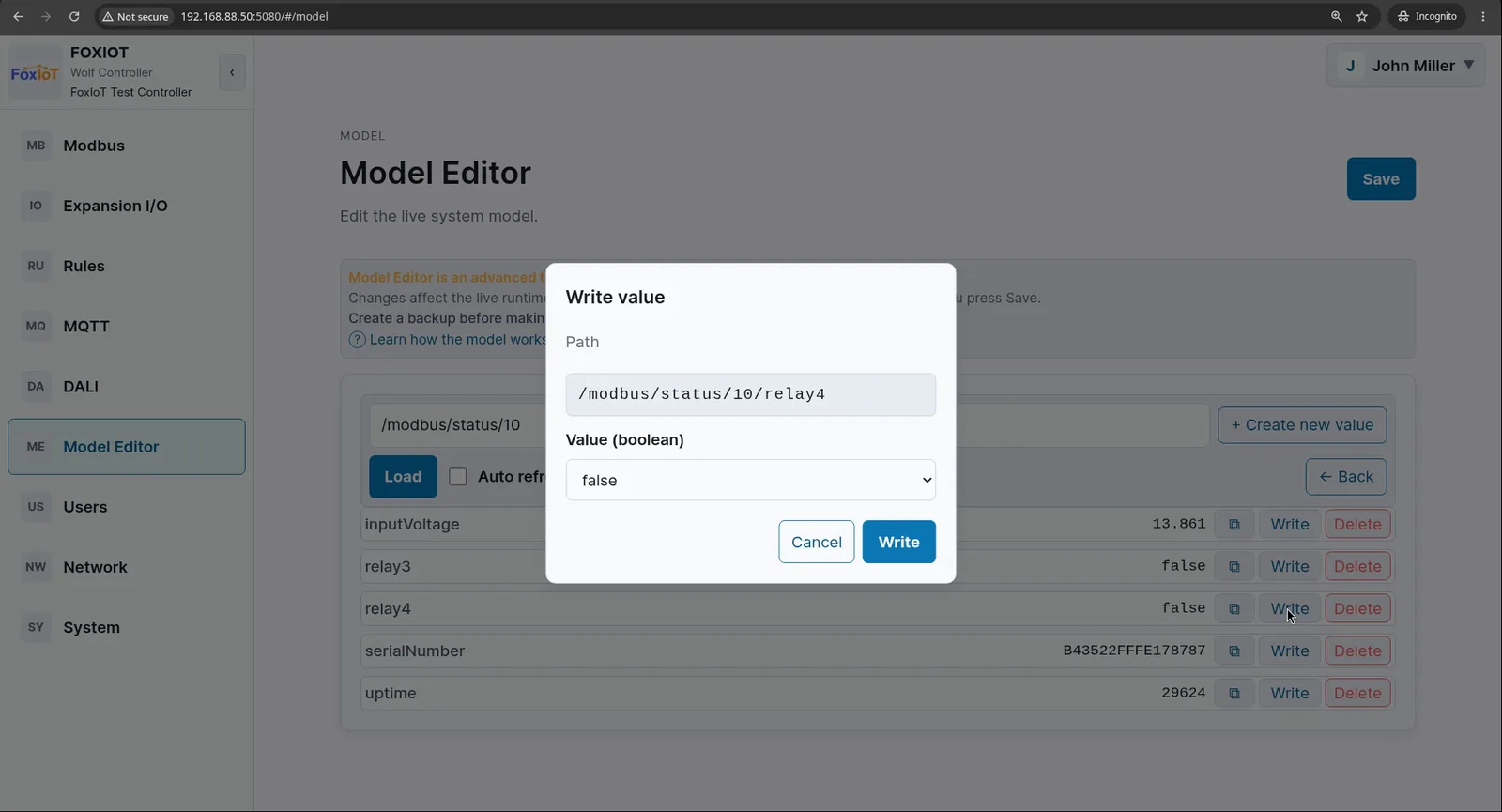
Write true to /modbus/status/10/relay4 and the relay closes. The new value appears in the list, and the lamp turns on — the same write, event and react steps, with you as the writer.
A write acts at once. Save only decides what survives a restart.
The moment you write a value, it is in the model and the event goes out. Subscribers react immediately: a rule runs, an output switches, a driver picks up its new setting. This is true for settings as well, not only for status — if a driver is subscribed to one of its conf paths, your change takes effect straight away, before you save anything.
Save does something different. It writes the tree to disk, so your settings are still there after a restart. It keeps everything outside status, as described above.
So a change you did not save is working now, but gone after the next restart.
⚠ The Model Editor is an advanced tool. It changes the live model, and a write can switch real outputs, drive a device, or start a rule. Make a backup of your configuration before you change anything here.
Some root paths are owned by the system and its drivers — /modbus, /modbusTCPServer, /modbusTCPGateway, /io, /3oiro, /rules, /system, /bacnet, /mqtt, /mbus and /persist. Reading them is safe. Writing or deleting data in them can change how the controller behaves.
The runtime log
The runtime log is the log of the whole application, not only of the model. Everything Wolf-App prints goes into it: the drivers, the REST API, the start-up messages and the errors — and, among them, every change in the tree.
Model changes appear as changed: lines — a timestamp, the path, the old value and the new value:
2026-07-28_19:34:53.03736 changed:/modbus/status/13/gridFrequency, old: Number(49.9900016784668) new: Number(50.0)
2026-07-28_19:34:53.19352 changed:/modbus/status/10/uptime, old: Number(124819) new: Number(124821)
2026-07-28_19:34:55.19814 changed:/modbus/status/10/uptime, old: Number(124821) new: Number(124823)
Numbers appear as the controller holds them — 49.9900016784668, not 49.99. A true/false change looks the same, with Bool(false) and Bool(true). The log is busy: an uptime counter alone changes every two seconds, so you normally filter it.
Driver lines sit in the same file, each marked with the part that wrote it — [dali], [modbus-rtu], [modem], [rest], [app]. Seeing model changes and driver work together, in timestamp order, is what makes the log useful.
The log is at /var/log/wolf-app/current on the controller. You read it over SSH:
ssh root@<gateway-ip>
tail -f /var/log/wolf-app/current
tail -f keeps running and shows each change as it happens — push a button or write a value, and the line appears. Press Ctrl+C to stop. This is the normal way to watch what the controller is doing.
SSH needs a key first. Wolf-App ships with no SSH keys, so SSH login is not possible out of the box. Add your public key under Network → SSH Keys and reboot — the steps are in Getting started §E.
Reading the log changes nothing on the controller. But before you use SSH to change anything, contact support@foxiot.eu — direct shell changes can affect the gateway's stability and its CE / CRA compliance.
To search the log instead of watching it, use grep. Because everything shares one file, grep is also how you pick out one kind of line:
grep 'changed:' /var/log/wolf-app/current     # model changes only
grep '\[dali\]' /var/log/wolf-app/current     # the DALI driver only
grep relay4 /var/log/wolf-app/current         # one path
grep relay4 /var/log/wolf-app/*               # one path, older files as well
The current file holds the newest lines. The directory also holds the older, rotated ones, which is why the last command searches further back.
The log is the main tool for finding out what happened and in what order — which value changed first, and what followed it. So status shows you the value right now, and the runtime log shows you how it got there.
⚠ The runtime log does not survive a restart. By default it is written in RAM, so it is gone when the controller restarts — in the same way as the status branches. It also holds only a short history: 20 files, which are compressed as they age. Read it while the problem is still there.
To keep the log, put an SD card in the controller. The card needs to be:
- 32 GB or larger.
- Made for constant writing — a SanDisk Extreme or an industrial card. The controller writes to the card all the time, and a cheap card wears out and fails.
- Formatted as ext4, on the first partition. Format it before you put it in. You can also format it on the controller over SSH, but doing it first is simpler and needs no shell access.
The controller checks for the card at boot, mounts it, and writes the log there from then on — there is nothing to switch on.
The path does not change: /var/log/wolf-app becomes a link to the card, so the same commands work either way. What changes is how far back you can look — the card keeps 2500 files instead of 20, and they are bigger.
Troubleshooting
I wrote a value and nothing happened. Make sure the value really changed. Writing the same value again creates no event, so nothing reacts. Also make sure you wrote to the path the driver actually uses — an output the driver does not own will hold your value but drive nothing.
My rule does not run.
Watch the exact value, not the branch above it. A rule on /modbus/status/10 does not run when /modbus/status/10/relay4 changes. Point the rule at the value itself.
My live values are empty after a restart.
That is normal. Everything under status is live only and is never saved. The devices fill it again as they read the real world. If a value you need is empty and stays empty, the device behind it is not answering.
My settings worked, and then they were gone after a restart. A write acts at once, but it is only in memory until you press Save. That is why a change can work all day and still disappear at the next restart. Press Save before you restart the controller.
I cannot find a setting in the model.
The model holds your process data, not the controller's system settings. User accounts, the network settings, the routes, the time servers, the WireGuard VPN, the firewall and the SSH keys each have their own page in Wolf-App and are saved there. Looking for them under /net or /system will not find them.
I cannot find the path for a device.
Open Model → Model Editor and walk down the tree: /modbus/status lists your Modbus devices by the ID you gave them, and each ID holds that device's values. The copy button next to a value copies its full path, ready to paste into a rule.
Next: set the controller up first if you have not — see Getting started.