
Wolf-App — Factory Reset
Reset a Wolf gateway to factory defaults using the front-panel button.
A factory reset returns the gateway to its original factory settings. It erases every setting and all application data on the device, then restarts it. Use it when you have lost access to the device — a forgotten password, a firewall rule that blocked you, or a VPN configuration that no longer works — or when you give the hardware to someone else and must remove the previous owner's data.
The whole procedure uses only the button on the front of the device. You do not need network access, a password, or a working web interface, so this method still works when nothing else does.
Prefer to watch? This walkthrough shows the whole button sequence with the timing on screen, and ends with logging back in.
⚠ This erases everything you have set up on the device — all settings, passwords and data. You cannot get it back. That includes your login details, network and firewall settings, the WireGuard VPN configuration, and your field-device configuration and data.
After the reset the gateway has only its default password and its original network settings. If it is installed in a place that is hard to reach, make sure you can set it up again on site before you start.
Before you start
You need three things:
- Physical access to the button on the front of the device. You cannot do this remotely. This is intentional, for security.
- The ability to switch the gateway off and on. The sequence begins while the device starts up.
- Your settings ready — IP addresses, VPN keys, and any field-device configuration you will need to enter again afterwards.
This takes a few minutes. Read the whole procedure before you touch the button: each step has a time limit, and if you miss one you must switch the device off and start again from the beginning.
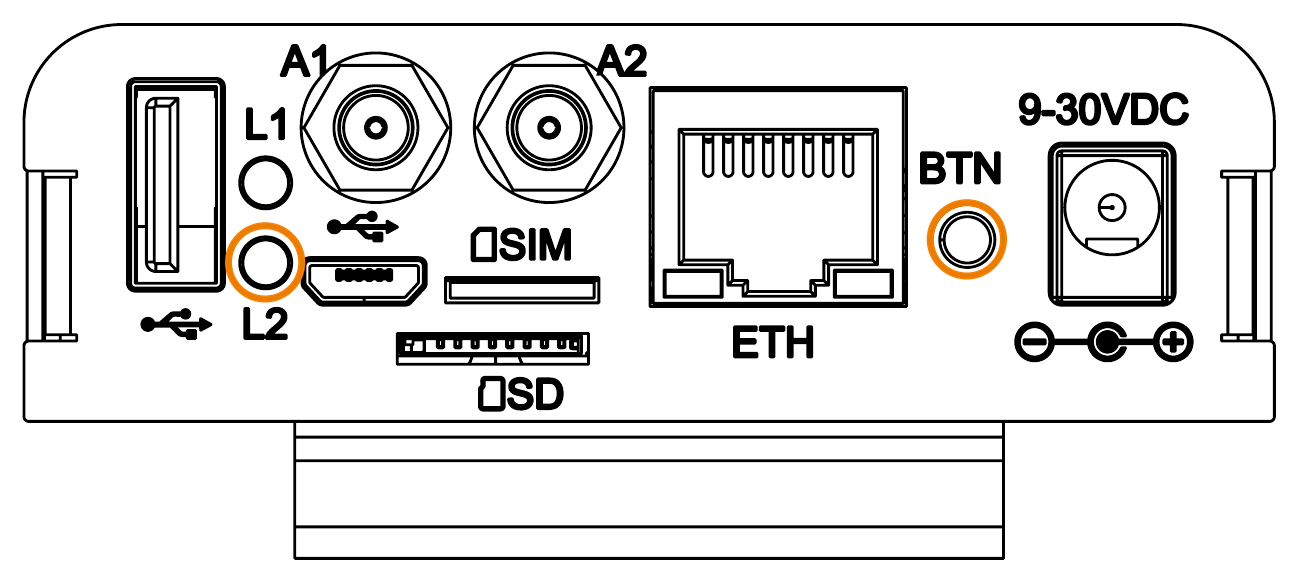
The two parts you need are marked with orange circles above: the button, marked BTN, next to the Ethernet socket, and L2, the yellow LED, on the left.
Reset procedure
The gateway has no display, so a single LED is its only way of telling you what is happening. Each step below describes what that light should be doing, so watch it closely.
Every step below refers to L2, the yellow LED. L1 (green) is the heartbeat: it shows that the device is powered and tells you when it has restarted, but it is not part of this sequence — do not confuse its blinking with L2.
1. Enter recovery mode
- Power the gateway off, wait about 5 seconds, then power it back on.
- While it starts up, press and hold the button, and keep holding it.
- When the yellow LED (L2) starts blinking rapidly, release the button within 5 seconds.
The gateway checks the button only once, at the end of its Linux boot. Press it at any point during start-up and keep holding until the LED reacts.
2. Press five times
As soon as the LED stops blinking and turns off, press and release the button 5 times within 10 seconds. The countdown starts the moment the LED turns off, so begin immediately.
Press and release calmly, about once per second — presses that are too fast are not registered. The LED blinks once per press it registers, so count the blinks, not your presses.
3. Hold for five seconds
After the fifth press the LED stops blinking and stays on continuously. Within 10 seconds, press and hold the button for 5 seconds.
Do not release the button while holding. If you release it, the 5 seconds start again from zero, and there is usually not enough time left — power off and start again from step 1.
4. Wait for the reboot
The LED blinks very fast for about 2 seconds to confirm the reset was accepted. The gateway then erases its data and restarts automatically.
⚠ Do not disconnect the power while the reset is running. Interrupting it can leave the gateway partly erased — if that happens, repeat the whole procedure.
What gets erased
Erased
| Item | Detail |
|---|---|
| Login details | Username, password, and TOTP two-factor setup |
| Network settings | IP configuration and all firewall rules |
| VPN configuration | Your WireGuard tunnel and its keys |
| SSH access | Any authorized keys you added |
| Logs | Audit log and authentication log |
| Application data | Data model values and field-device configuration |
| Startup script | Any custom script an integrator installed |
Kept
| Item | Detail |
|---|---|
| Firmware | The installed firmware version does not change |
| Operating system | The base system is not changed |
| Factory defaults | The original default settings and login details |
Giving the device away? The reset removes all user data from the writable storage. However, NAND flash memory can still hold traces of old data after erasing. If you need a complete guarantee, destroy the device physically. This is described in the user information PDF §8(d).
After the reset
The gateway restarts with its factory settings and the default login — username foxiot, password foxiot.
All your previous configuration is gone, so treat the device as new:
- Find the gateway on the network and open the web UI.
- Change the default password immediately. Until you do, anyone on the network can reach the device.
- Re-apply the hardening steps — two-factor authentication, the WireGuard VPN, and the firewall rules.
- Reconfigure your field devices and data model.
The Wolf-App setup guide explains all of this from the beginning.
Troubleshooting
The LED never blinks when I power on. You most likely released the button too soon. The gateway completes a full Linux boot before it checks the button, and it checks only once — if you were not holding the button at that moment, nothing happens. Power off, wait 5 seconds, power on, then press and hold the button while it starts up and keep holding until the LED blinks.
The LED stopped blinking before I finished. If it turned off just after step 1, this is not a fault — it is your signal to start pressing. Otherwise a time limit ran out: 5 seconds to release the button in step 1, 10 seconds for the five presses in step 2, 10 seconds to begin holding in step 3. Switch the gateway off and start again from step 1.
Nothing happened after five presses. Some presses were not registered. Each press must be a full press and release. If you press too fast, or do not press far enough, some presses are not counted. Watch for a blink after every press, and start again from step 1 if you do not see five.
I completed the sequence but the default password is rejected. The reset did not run. If the LED never gave you the fast-blink confirmation in step 4, the hold in step 3 was too short. Start again from step 1.